
Video: Camera Setup
Regardless of camera type, some pitfalls can be easily avoided.
Camera Orientation
Portrait vs Landscape: Obviously the landscape (horizontal) view is better, regardless of whether it is watched on PC or mobile - it gives a wider view for a better view of the table that should be the focal point.
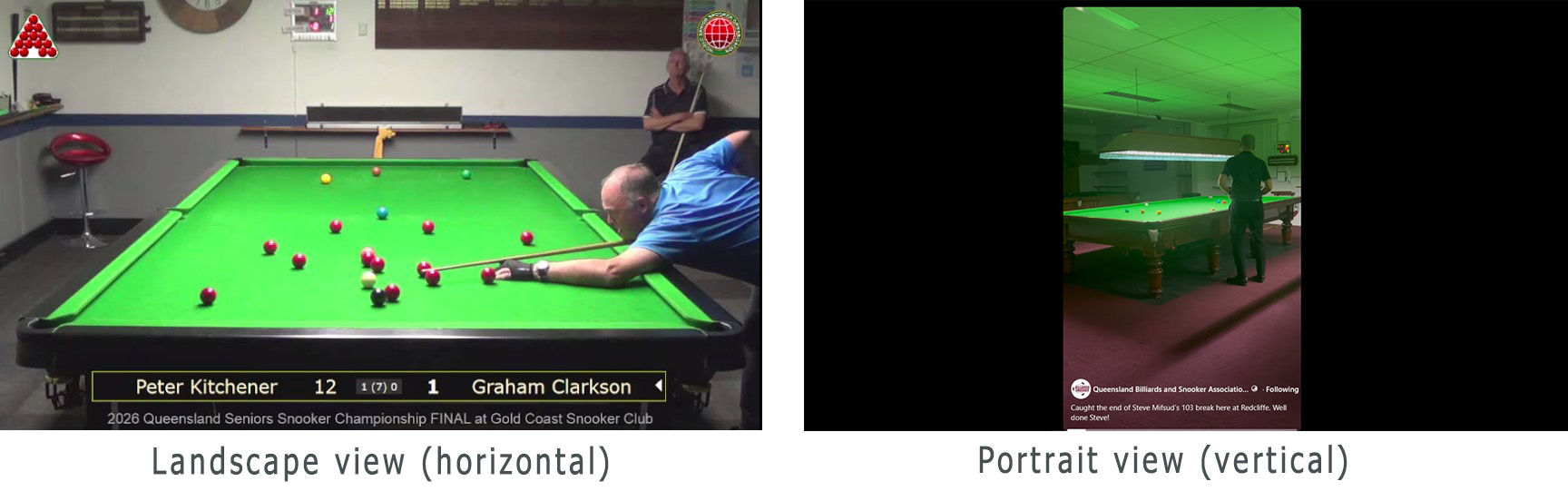
As you can see, the portrait view is an absolute waste of potential. All one has to do is arrange the camera (or mobile phone) for a landscape view before starting to record.
Camera Source
If you are overlaying title, club logos and/or scoreboard overlay, no doubt you will be using OBS Studio.
However, even after recording snooker videos for many years, one can still get into trouble. For example, we have been using the same old HandyCam video camera for about 20 years, and while we never had a problem, we got into all sorts of trouble on the last event. The handycam was ideal for low light conditions where there is a hot spot on the table - with more sophisticated recorders lots of adjustments need to be made in settings for the same effect.
Why we got into trouble was that the camera had not been used for more than 12 months, and the low battery level caused a reset to default settings. Also, we didn't remember how to use it.
Then we we retrieved the recording, we had to edit a lot parts due to ads that poppped up every 10 minutes, and that is where our expedition began. Prior to this event, we used Corel Visual Studio to edit video recorded on iPhone, only .MOV files were not supported. So we updated Visual Studio to the latest version, only to find that the latest version could not import .MKV files.
In any case, we considered purchasing a new video camera, one with a decent inbuilt microphone. But the cost was prohibitive, so we compared the video quality of our handycam to our iPhone, and found that the iPhone was far superior. But how to get an iPhone (an Apple product) to stream video to a Windows computer?
How to use an iPhone camera with OBS Studio
Some research turned up a few methods, the most recommended being to install support for Apple Devices on the Windows PC and then install the iOS Camera for Windows app on the iPhone. Unfortunately teh Apple app required a subscription to remove a watermark that filled teh screen. But after paying for a subscription, we found that it didn't work at all!
Next we tried using IRIUN software - they provide an app to install on the Windows PC and another app to install on the iPhone, and the best news is that it is FREE and it worked ok first time.
Once those apps are installed, all you have to do in OBS Studio, is click on the Video Capture Device plugin in OBS sources, and select Iriun Webcam.
Now that we can use an iPhone for the camera, everything is much simpler. With a video camera we needed to use a decoding box which meant that there were 2 leads running from the camera and another 2 leads running from the decoder to the notebook (PC). But now with the iPhone setup there is only 1 lead running from the iPhone to the USB port on the notebook.